Setup guide
From download to your first answer in about 10 minutes: install CuePilot, activate it, connect your own OpenRouter key, and learn the shortcuts.
Step 1
Before you start
- A Windows 10 (version 2004 or later) or Windows 11 PC, 64-bit. macOS is not supported yet.
- Your interview or meeting app (Zoom, Google Meet, Teams…) on the same PC, with sound coming through it.
- A microphone if you want it to hear your side too (optional).
- An OpenRouter account with a few dollars of credit. Step 4 shows how.
Step 2
Install the app
- 1Go to the Download page and click Download for Windows. You’ll get
CuePilot-Setup.exe. - 2Open the file. If Windows shows “Windows protected your PC”, click More info → Run anyway. This appears for new apps that aren’t code-signed yet.
- 3Click through the installer. No admin rights are needed; it installs just for you. Tick Create a desktop shortcut if you want one.
- 4Leave Launch CuePilot ticked and click Finish.
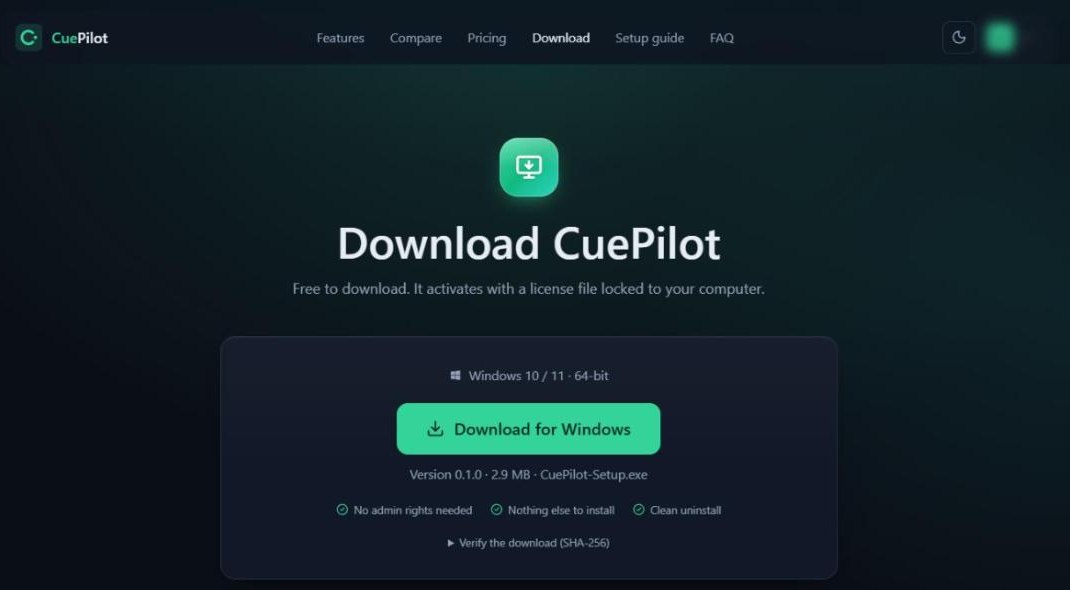
You can find it later in the Start menu as “CuePilot”.
Step 3
Activate your license
- 1On first launch the app shows License required with your Hardware ID. Click Copy HWID; the button turns to “Copied!”.
- 2On this website, create an account (or sign in), open Pricing and click Buy now on a plan.
- 3Paste your Hardware ID, enter your mobile number, apply a coupon if you have one, and pay with UPI, card or net banking.
- 4After payment you’ll see Payment received. Click Download license.lic (it’s also in your dashboard any time).
- 5In the app, click Select license.lic file… or simply drag the file onto the CuePilot window. It’s remembered from then on.
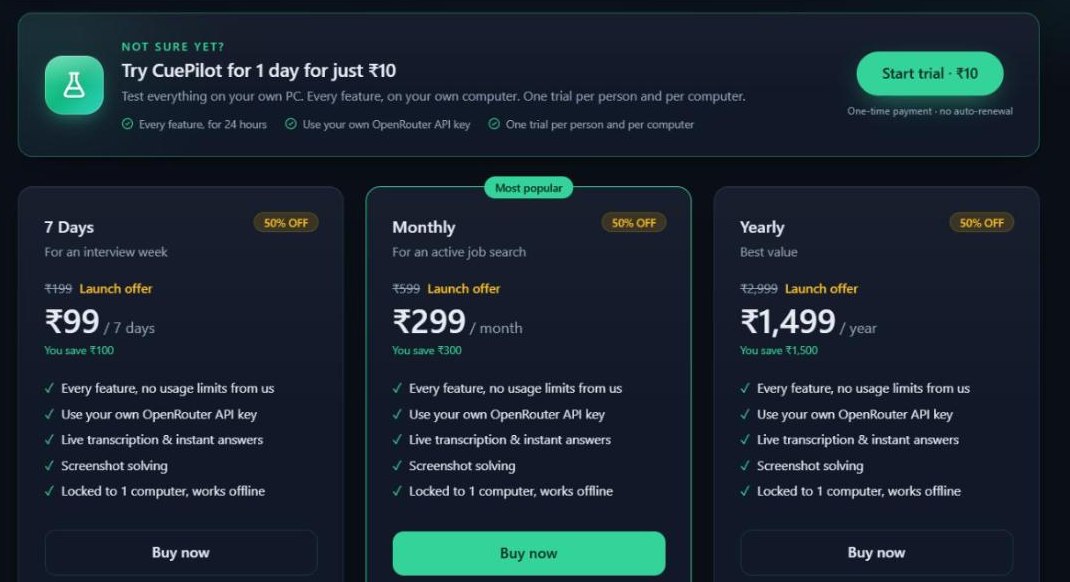
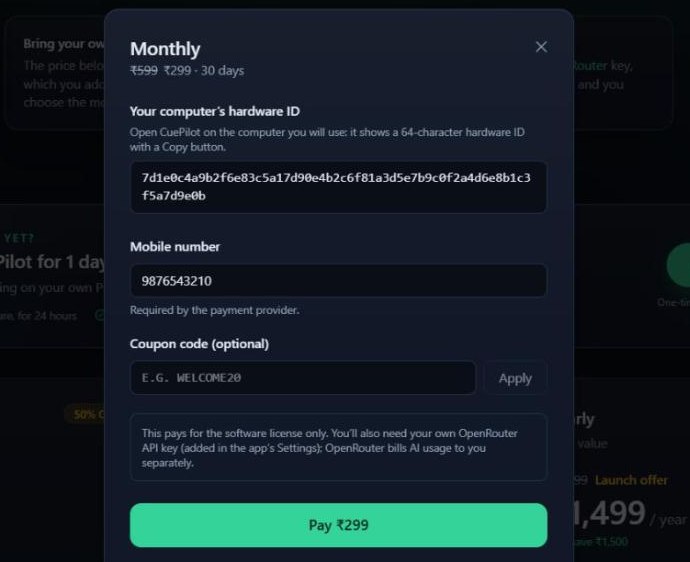
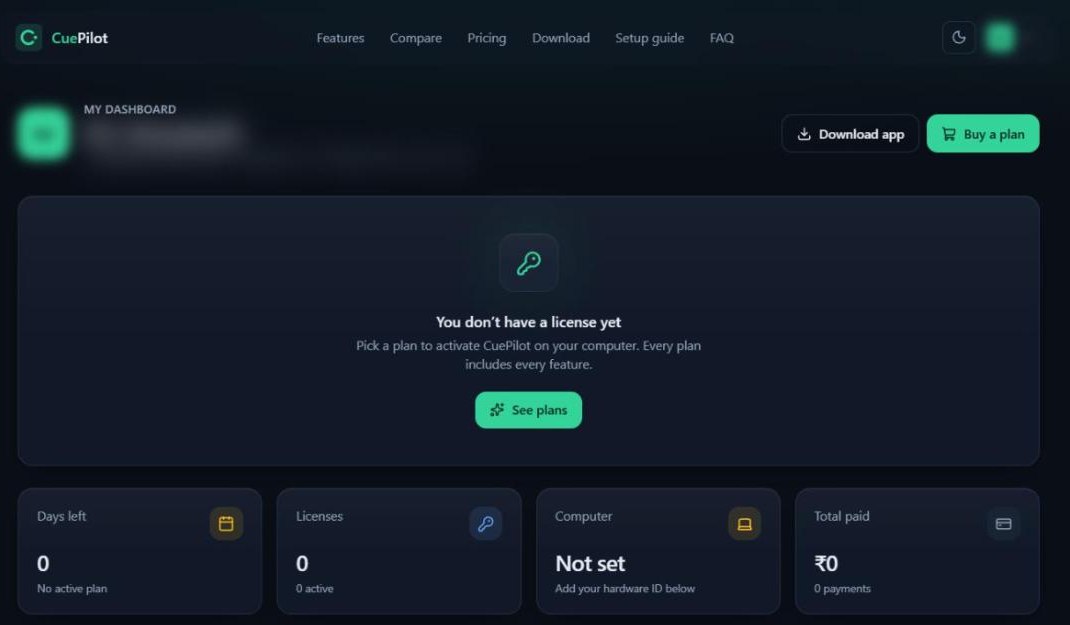
A license is locked to one computer. Bought it for the wrong PC? Email support@example.com with the new Hardware ID.
Step 4
Create your OpenRouter API key
CuePilot uses your own OpenRouter key: you pay OpenRouter directly for the AI you use, with no markup from us, and choose any model they offer.
- 1Go to openrouter.ai and click Sign in (Google, GitHub or email).
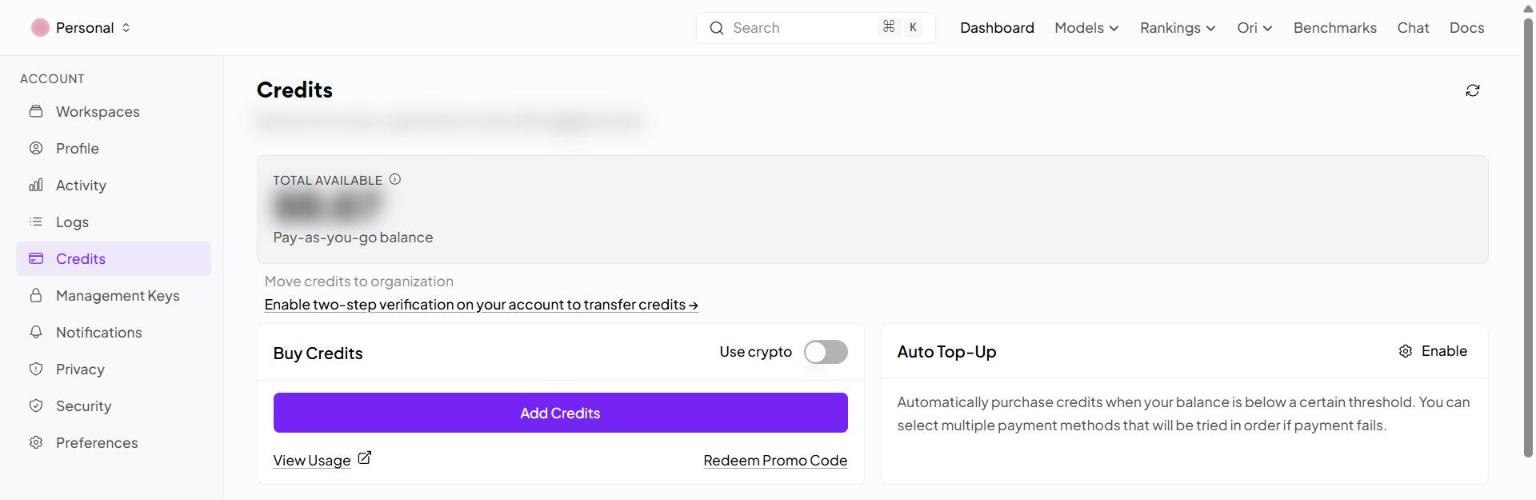
- 2Open Credits and click Add Credits. OpenRouter is prepaid: a few dollars is enough to start, and you can never be charged more than you load. Already have credit? Skip this.
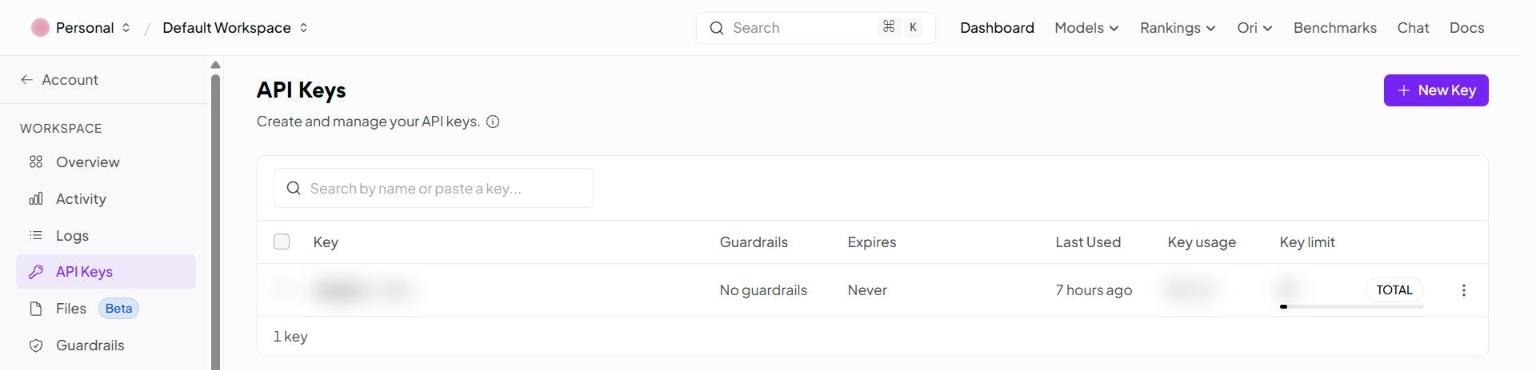
- 3Open API Keys (under Workspace in the left menu) and click + New Key.
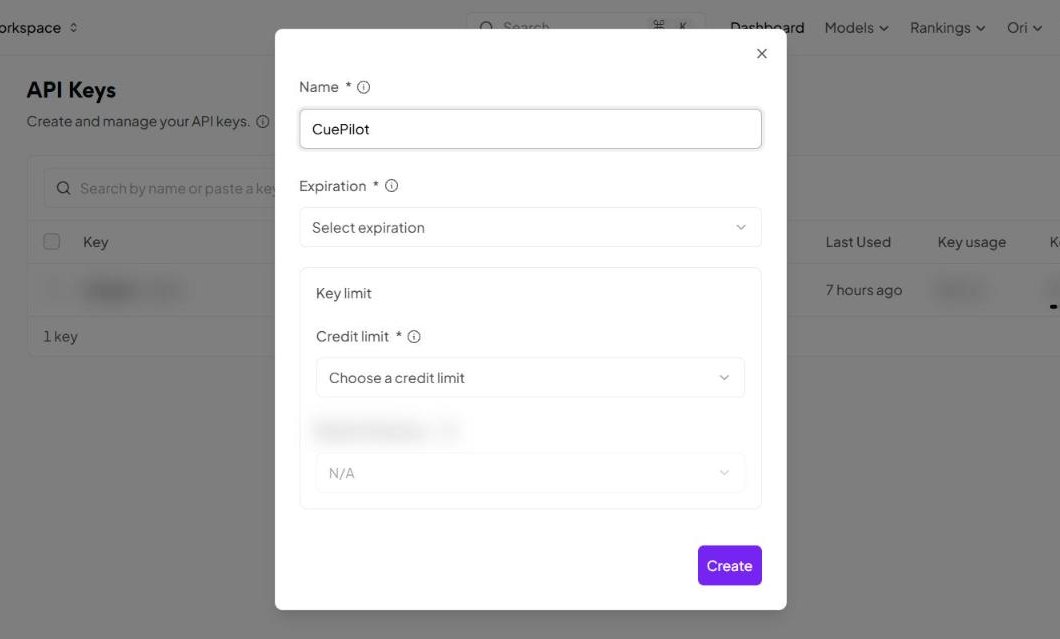
- 4Enter a Name such as
CuePilot, choose an Expiration and a Credit limit (the most this key may ever spend), then click Create. - 5Copy the key that appears: it starts with
sk-or-v1-and is shown only once. Keep it private, like a password.
Screenshots taken in October 2026. If OpenRouter has moved things around, look for “Credits” and “API Keys” in the menu.
Step 5
Connect the key to CuePilot
- 1In CuePilot, open the Settings tab. Under OpenRouter, paste your key into API key. It saves automatically on this PC.
- 2Still in Settings, under Live answers, pick the Answer model. A fast model such as
openai/gpt-4o-ministarts answering in about 2 seconds. - 3In Settings → Screen capture, choose the Screenshot model for coding problems (a strong vision model works best).
- 4Transcription works with the same key by default (Settings → Speech-to-text → Engine). Deepgram is optional and needs its own key.
Step 6
Add your resume and the job description
- 1Open the Knowledge Base tab.
- 2Fill in Resume, Job Description and Project README / Notes: paste text or click Load file… (.txt or .md; save PDFs as text first).
- 3That’s it. Everything is saved on your PC and used in every answer, so answers sound like your real experience.
Step 7
Use it in an interview
Two ways to answer
- Hands-free: in Settings, tick Answer detected questions automatically while listening. CuePilot answers each question as soon as the interviewer stops speaking.
- Answer on click: in Settings, untick Answer detected questions automatically. It keeps listening, and answers everything heard so far when you click Answer or press CtrlShiftA. Great for long, multi-part questions.
- Coding problems: click Capture Screen at the top (as many times as needed), then Send on the Screen & Type tab. You can also type a question there.
Shortcuts
- Start / stop listening
- CtrlShiftL
- Answer now
- CtrlShiftA
- Click-through on / off
- CtrlShiftSpace
- Show / hide the overlay
- CtrlAltH
- Clear the answer
- CtrlShiftBackspace
Keep Settings → Privacy → Hide the HUD from screen capture, recording and sharing ticked. Do a quick test screen share with a friend before your real interview.
Step 8
Troubleshooting
It says “Listening” but no text appears
Check that call audio plays through your default speakers or headset, then click Settings → Diagnostics → Reconnect audio.
“No OpenRouter API key”
Paste your key in Settings → OpenRouter → API key (step 5) and make sure your OpenRouter account has credit.
“HWID mismatch”
The license was bought for a different computer. Email support with this PC’s Hardware ID.
“License expired”
Buy a new period on the Pricing page, then load the new license.lic.
“The system clock was set back”
Set Windows to the correct date and time automatically (Settings → Time & language).
The overlay shows in my screen share
You need Windows 10 version 2004 or later, and the Privacy option in Settings must be ticked.
Step 9
Uninstall
Windows Settings → Apps → Installed apps → CuePilot → Uninstall. You’ll be asked whether to also delete your saved settings and API key.